Computation for Linguists
Learning the Command Line: Files and Directories
Dr. Andrew M. Byrd
2025-09-22
Review
Review: So far, you have learned about…
File structure & dependencies
- In LaTeX, you had to make sure images, .bib files, and style files were in the right folder so the document would compile.
- In HTML/CSS, you linked CSS files and images using relative paths.
Review: So far, you have learned about…
- Commands as instructions
- LaTeX commands (
\section{},\usepackage{}) - CSS rules (
color: blue;) are small, precise instructions. - You have learned about proper syntax, arguments, flags/options, and order of operations.
- LaTeX commands (
Review: So far, you have learned about…
- Reproducibility & automation
- In LaTeX, you built a reproducible doc (compile again, get the same result).
- In HTML/CSS, you built a reusable template within CSS files.
This week:
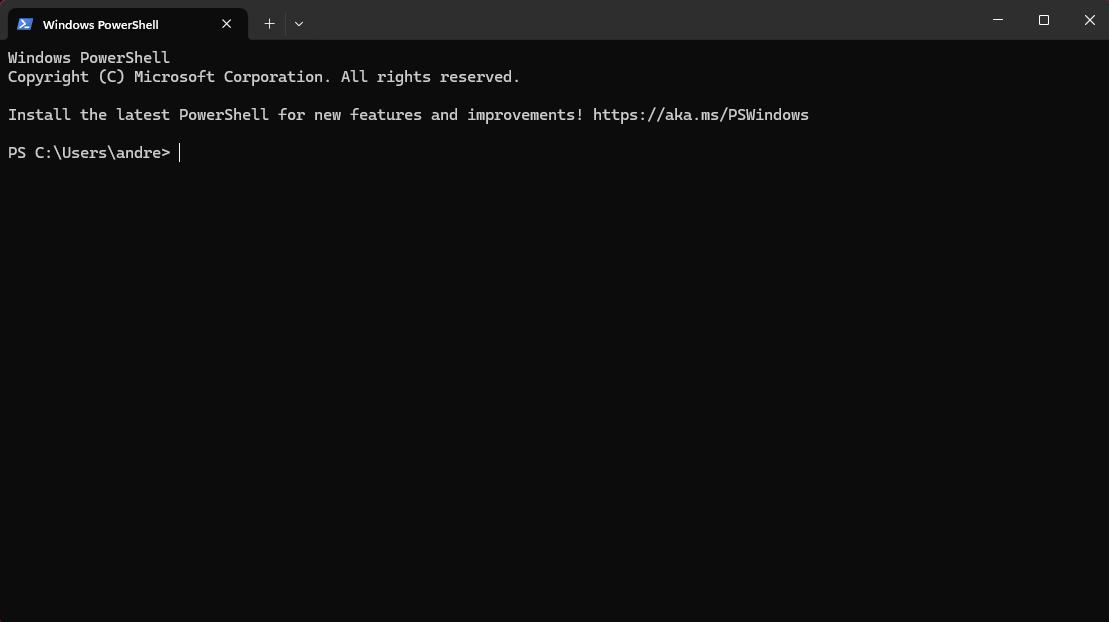
You may be thinking:
- Nooooooooooooooooooooooooooooo!
- I’m still scarred from installing GitHub.
- Please let’s not go back there.
But:
- It’s important to understand how the basics work.
- Where do files live?
- How do we navigate between them?
- And the above concepts - file structure & dependencies, commands, and reproducibility - will be present here, too.
Learning the Terminal
Why start in the terminal?
- Python always runs inside a folder (your working directory).
- If you can move, list, and fetch files here, this will make it easier to understand how to access files in Python later.
- Same skills for Git and other computational environments, like:
- servers and clients
- clusters (computers set up to work together)
Why start in the terminal?
- While this isn’t the case for me, I’ve been assured by various linguists that understanding how the Terminal works is crucial for conducting certain types of research, particularly in Phonetics
Navigating the Terminal
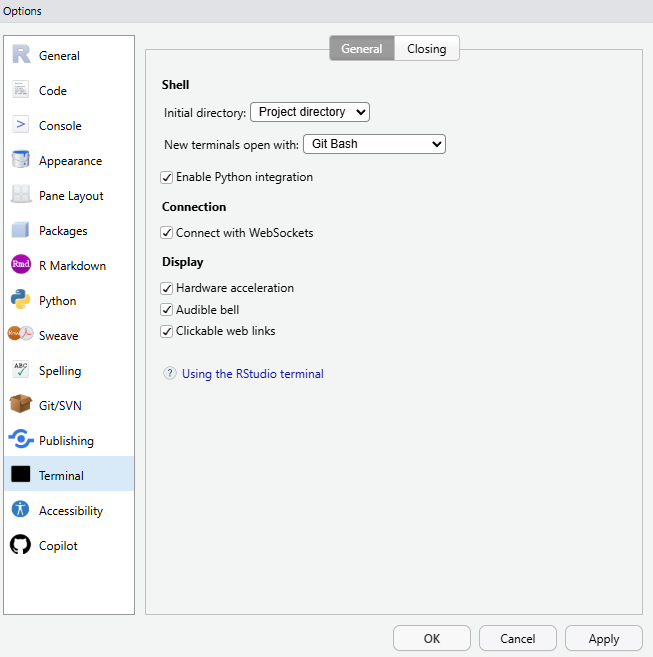
- We’ll be working within the
Terminalin RStudio
Navigating the Terminal
- Let’s start with the first command
Navigating the Terminal
- You can also look to see what’s in the current directory
Navigating the Terminal
- Most commands have options
Navigating the Terminal
- You need to specify which directory to change into
- For now, use:
Navigating the Terminal
- Type:
- Find a directory (dir_name) within it, and type (replacing
dir_namewith the actual directory name):
- This should move you “up” into the directory. Verify this is the case with
ls.
Navigating the Terminal
Activity
- Type
cd ~, to bring you to your home directory - Using
pwdandlsas your guide, navigate your way into yourLIN_301folder
Making and Renaming Files & Folders
mkdir
- You should now be in your LIN_301 folder in the Terminal Prompt
- Look in the right bottom corner panel of RStudio, what do you see?
- Type the following code:
- Now look in the right corner - did anything change?
rmdir
- Now type the following code
- Look in the right corner of RStudio - did anything change?
touch
- Now type the following code:
- Look in the right corner of RStudio - did anything change?
- What does
touchdo?
mv
- We want to place our new
txtfile in the folder, so let’s run this code:
mv
- Ah crap, I misspelled
test_bolder, let’s run this code:
Activity
- Within your
LIN_301repo:- Create a file called
activity.txt - Create the following folders:
folder_1>folder_2>folder_3 - Move
activity.txtinsidefolder_3
- Create a file called
- You can only use the Terminal in RStudio!
- Use
pwdandlsas your guide
- Use
A Couple More Tricks
curl
- We all know how to download things from the Internet, but what about using the Terminal?
- Type this code:
- This is a useful list of Terminal commands
- Move this file into
folder_1
rm -r
- Let’s learn one more bash command
- What happens?
You bastard!
- Don’t worry! Type the following code:
Bringing it Back
- Now copy and paste (use right click) into the Terminal:
cat > script.sh <<'EOF'
#!/bin/bash
echo "This is my first script."
curl -o term_comm.txt https://winjapati.github.io/301_Fall_2025/3_command_line/12_term_comm.txt#
mkdir folder_1
mv term_comm.txt folder_1
echo term_comm.txt- Then type:
- Look inside
script.sh, what did you do?
OMG
- Type: